

How to Open Gaming Mouse CyberPowerPC

Gaming mice have evolved beyond simple peripherals. Modern gaming mice, including CyberPowerPC models, are engineered for precision, ergonomic comfort, customizable DPI, and rapid response times. Over time, you may need to open your gaming mouse, for cleaning, replacing switches, or performing hardware modifications. Doing so properly ensures longevity, maintains performance, and enhances your gaming experience. This guide will walk you through the process safely while considering aspects like ergonomic design, cable management, and customization.
Why Opening Your Gaming Mouse Matters
Over-extended use, dust, debris, or oil from hands can accumulate inside your mouse, affecting sensor performance, button responsiveness, and glide. Cleaning or maintaining the internals can:
- Improve tracking accuracy and responsiveness.
- Extend the lifespan of switches and buttons.
- Ensure smooth movement for optimal performance in competitive gaming.
- Allow hardware modifications, such as customizing weights or replacing switches.
Proper maintenance is especially important for PC gamers who rely on precise control for first-person shooters, strategy games, or fast-paced action titles.
Precautions Before Opening Your CyberPowerPC Mouse
Opening a gaming mouse requires attention to detail. Take these precautions:
- Unplug the Mouse: Always disconnect the mouse from your PC or power source to prevent short circuits.
- Work on a Clean Surface: Use a flat, well-lit workspace to avoid losing small screws or components.
- Use Proper Tools: A small Phillips-head screwdriver or precision toolset is recommended. Avoid excessive force that could damage the plastic casing.
- Document the Disassembly: Take photos at each step to ensure proper reassembly. This prevents mistakes that can affect functionality.
- Avoid Warranty Violations: Check if opening your mouse voids the manufacturer’s warranty. Some modifications may be restricted.
Step-by-Step Guide to Opening a CyberPowerPC Gaming Mouse
Step 1: Identify the Screws
Most CyberPowerPC gaming mice have screws hidden under the mouse feet or adhesive pads. Carefully remove the feet using a plastic pry tool or thin card. Keep them safe, as they will be reattached later.
- Inspect for visible screws on the bottom.
- Some models may have clips or tabs that require gentle prying.
Step 2: Remove the Outer Shell
Once screws are exposed and removed, carefully separate the top shell from the base.
- Use a plastic spudger or pry tool to avoid scratching or cracking the casing.
- Work around the edges slowly; forcing the shell can break tabs or clips.
- Keep track of internal components like the scroll wheel and sensor bracket.
Step 3: Access Internal Components
With the shell removed, you can access critical parts of your mouse:
- Sensor: Check for dust or dirt affecting tracking.
- Switches and Buttons: Look for wear or dust accumulation that can hinder click response.
- Scroll Wheel Mechanism: Ensure smooth rotation and responsive tactile feedback.
- PCB (Printed Circuit Board): Inspect for debris, loose connections, or corrosion.
Step 4: Cleaning and Maintenance
Use safe cleaning methods to maintain your mouse:
- Compressed Air: Remove dust from sensors, buttons, and small crevices.
- Cotton Swabs: Dampen slightly with isopropyl alcohol to clean plastic parts, scroll wheel, and sensor housing.
- Soft Brush: Gently brush off dirt from tight corners or under switches.
Avoid applying liquids directly to the PCB or sensor.
Step 5: Optional Upgrades or Repairs
Opening your CyberPowerPC gaming mouse allows for modifications:
- Switch Replacement: If clicks feel inconsistent, replace worn-out mechanical switches.
- Weight Adjustment: Some models allow changing internal weights for a preferred feel.
- Cable Replacement or Modding: Improve cable flexibility or aesthetics.
- Custom Mouse Feet: Replace worn-out feet for smoother gliding on your mousepad.
These enhancements can elevate your gaming performance and comfort.
Step 6: Reassemble Your Mouse
Reassembly is as important as disassembly. Follow these tips:
- Align the Shell Properly: Ensure that the scroll wheel, buttons, and sensor align with the base.
- Secure All Screws: Tighten screws gradually to avoid stripping or cracking.
- Reattach Mouse Feet: Use adhesive or double-sided tape for a secure fit.
- Test the Mouse: Connect to your PC and test buttons, DPI adjustments, and sensor responsiveness.
Proper reassembly ensures your mouse performs as intended without affecting ergonomics or glide.
Optimizing Your Mouse After Maintenance
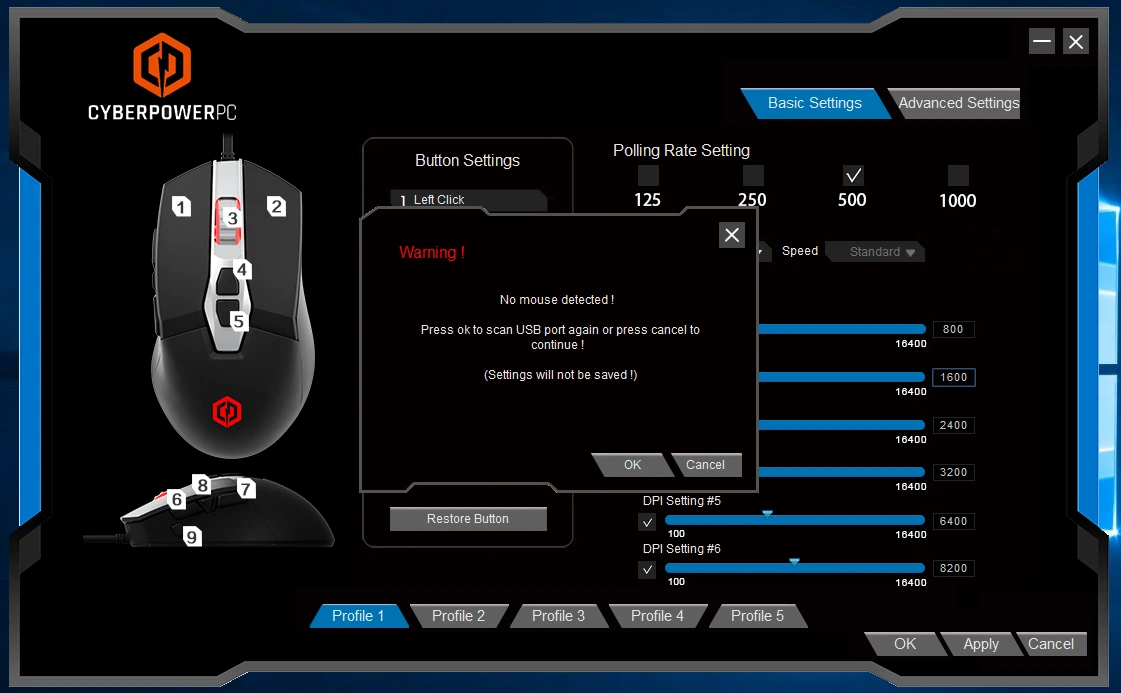
Once your mouse is clean and reassembled, take advantage of software features to optimize performance:
- Adjust DPI and Sensitivity: Tailor the cursor speed to your gameplay style.
- Customize Button Assignments: Assign frequently used in-game actions to extra buttons.
- Update Firmware: Keep your mouse firmware updated for maximum stability.
- Test Performance: Use target practice maps or aim trainers to ensure accuracy and responsiveness.
Related read: How to Optimize Gaming Mouse Settings
Wired vs Wireless CyberPowerPC Mouse
Your setup may feature a wired mouse or a wireless mouse, based on your CyberPowerPC model.. Each type has pros and cons:
- Wired: Provides consistent connectivity, minimal latency, and usually lower cost. Ideal for competitive gaming.
- Wireless: Offers freedom of movement, cleaner desk setups, and modern low-latency technology. Perfect for streamers or multitaskers.
Related read: Is wired or wireless mouse better for gaming
Enhancing Comfort and Desk Setup
Optimizing your mouse settings goes beyond DPI and clicks. Consider ergonomics and desk aesthetics:
- Mouse Grip Style: Adjust sensitivity and button assignments to your grip, whether palm, claw, or fingertip.
- Mousepad Quality: Use smooth or textured pads for precise tracking and comfort.
- Desk Layout: Ensure enough space for large sweeps and unrestricted mouse movement.
- Cable Management (for Wired Models): Reduce drag and clutter with cable routing or a mouse bungee.
These lifestyle adjustments enhance performance, comfort, and the overall gaming experience.
FAQs
Is it safe to open a CyberPowerPC gaming mouse?
Yes, if done carefully with the right tools. Always disconnect the mouse and work on a clean surface. Take photos during disassembly for reference.
Can I replace switches or buttons myself?
Yes, most mechanical switches are replaceable. Ensure compatibility and follow proper soldering or clip installation procedures.
Does opening the mouse affect performance?
Proper disassembly and maintenance improve performance by removing dust, ensuring smooth gliding, and restoring button responsiveness.
Do wireless mice require extra caution when opening?
Yes, wireless mice contain batteries and additional electronics. Take extra care to avoid short circuits or damage.
How often should I clean my gaming mouse?
For heavy use, clean every 2–3 months, or whenever tracking and click responsiveness degrade.