

How to Make a Mechanical Keyboard Quieter

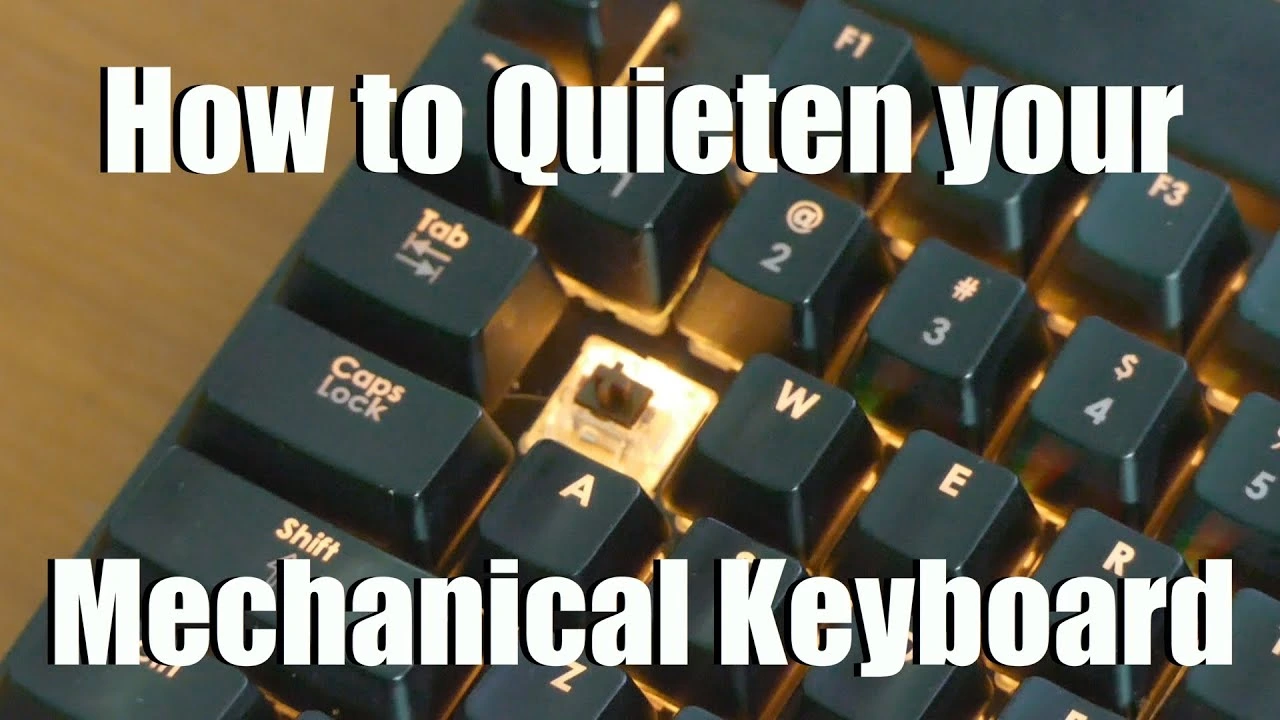
Mechanical keyboards are highly favored by gamers, PC enthusiasts, and professionals for their tactile feedback, customizable switches, programmable keys, and RGB lighting. They offer a premium typing experience, precise control in games, and durability that lasts for years. However, one common concern among users is the noise produced by mechanical switches. The distinct clicky sounds can be distracting in shared spaces, office environments, or late-night gaming sessions.
Fortunately, there are effective methods to reduce the noise without compromising performance or ergonomics. This guide will explore the best techniques to make your mechanical keyboard quieter while maintaining the tactile feel, precision, and durability that mechanical keyboards are known for.
Why Mechanical Keyboards Can Be Loud
The sound of a mechanical keyboard originates from several factors:
- Switch Type: Clicky switches like Cherry MX Blue or Razer Green produce loud audible clicks, while tactile or linear switches are quieter.
- Keycap Material: ABS keycaps tend to amplify sound compared to PBT keycaps, which absorb some of the impact noise.
- Keyboard Build: The case material and construction affect acoustics; metal cases can amplify sound, while plastic or dampened cases reduce resonance.
- Typing Force: Heavy typing or rapid keystrokes create louder sounds, especially on clicky switches.
Understanding these factors helps in implementing effective noise-reduction strategies.
Step 1: Choose Quieter Switches
Switch type plays the most significant role in keyboard noise. Consider the following:
- Linear Switches (e.g., Cherry MX Red, Gateron Red): Smooth keypress without tactile bumps or clicks, making them quieter.
- Tactile Switches (e.g., Cherry MX Brown, Zealios): Provide feedback without a loud click, offering a balance between typing feel and noise reduction.
- Clicky Switches (e.g., Cherry MX Blue): Produce audible clicks and are the loudest option. If noise is a concern, avoid clicky switches.
Switch replacement may require soldering or hot-swappable keyboards for easy upgrades, but it significantly reduces typing noise.
Step 2: Lubricate Switches
Lubrication can minimize friction and reduce the clack of mechanical switches:
- Disassemble the Keyboard: Remove keycaps and, if possible, take out switches (hot-swappable or desoldered).
- Apply Switch Lubricant: Use a thin layer of Krytox or dielectric grease on the stem and slider rails.
- Reassemble and Test: Reattach switches and keycaps to check the sound reduction.
Lubrication not only quiets keypresses but also improves smoothness and tactile consistency, enhancing both typing and gaming experiences.
Related read: How to clean mechanical keyboard
Step 3: Install O-Rings or Dampeners
O-rings or silicone dampeners reduce the noise from key bottoming out:
- Place an O-ring on the stem of each keycap.
- When typing, the keycap hits the O-ring instead of the switch base, softening the impact.
- Choose O-rings of varying thickness or hardness to customize noise reduction and key feel.
This method is inexpensive, easy to install, and effective in significantly reducing bottom-out noise while maintaining a responsive typing experience.
Step 4: Switch to Softer Keycaps
Keycap material affects sound resonance:
- PBT Keycaps: Thicker and denser than ABS, they reduce vibration noise and provide a slightly muted sound.
- Double-Shot or Dye-Sub PBT: Retain legends while offering superior durability and quieter typing.
- Avoid thin ABS keycaps: If noise is a concern, as they amplify the sound of each keystroke.
Keycap replacement is a cost-effective way to improve acoustics while upgrading the aesthetics of your keyboard.
Step 5: Add Foam or Dampening Materials
Adding internal dampening reduces vibrations and hollow sounds:
- Case Foam: Place soft foam between the PCB and keyboard plate to absorb vibrations.
- Sound Dampening Mats: Some users line the bottom of the case with silicone mats.
- Switch Films: Thin films between the switch and PCB minimize movement and vibration noise.
These adjustments can transform a clicky keyboard into a quieter, more refined typing instrument without altering performance.
Step 6: Adjust Typing Technique
Sometimes, reducing noise is as simple as modifying typing habits:
- Avoid Bottoming Out: Light keystrokes or using tactile feedback can prevent hard impacts.
- Type With Controlled Force: Excessive pounding amplifies noise, even on linear switches.
- Practice Ergonomic Hand Placement: Reduces fatigue and naturally softens keystrokes during long sessions.
Combining technique improvements with hardware adjustments maximizes comfort, performance, and acoustics.
Step 7: Consider a Desk Mat or Keyboard Mat
Placing your mechanical keyboard on a soft desk mat can reduce transmitted noise:
- Absorbs Vibrations: Prevents sound from bouncing off the desk surface.
- Stabilizes Keyboard: Reduces rattling or movement during aggressive typing.
- Enhances Comfort: Using gaming keyboards improves wrist positioning and overall ergonomics for longer gaming or work sessions.
This is a simple, low-cost solution with immediate impact on noise reduction.
Benefits of Quieter Mechanical Keyboards
A quieter keyboard provides multiple advantages:
- Enhanced Comfort: Reduces auditory fatigue during long sessions.
- Better Focus: Minimizes distractions for both the user and those nearby.
- Maintained Performance: Noise reduction techniques do not compromise tactile switches, programmable keys, or responsiveness.
- Improved Desk Setup: Cleaner sound contributes to a more professional or immersive gaming environment.
Quieter keyboards strike a balance between performance, ergonomics, and practicality, appealing to both gamers and office users.
Advanced Options for Noise Reduction
For enthusiasts seeking ultimate silence:
- Silent Switches: Some mechanical switches, like Cherry MX Silent Red, are designed for low noise.
- Hybrid Keyboards: Combines mechanical switches with membrane dampening for muted keypresses.
- Custom Lubing and Films: Full keyboard teardown for professional lubrication and switch films ensures minimal friction and noise.
- Acoustic Foam Enclosures: Professional-grade foam within keyboard housing can nearly eliminate mechanical resonance.
These techniques provide top-tier quietness while preserving mechanical feel and RGB mechanical keyboard customization.
Frequently Asked Questions (FAQs)
Will O-rings affect typing feel?
Yes, they slightly reduce key travel distance and soften bottoming out. Choose thickness based on preference.
Does lubrication affect switch longevity?
Properly applied, lubrication can increase switch longevity by reducing friction and wear.
Can I quiet clicky switches without replacing them?
Yes, using O-rings, foam, and lubrication can significantly reduce noise without changing switches.
Do PBT keycaps make a noticeable difference?
Thicker PBT keycaps reduce vibrations and produce a more muted, refined sound compared to thin ABS keycaps.
How often should I perform noise reduction maintenance?
Once every few months for lubrication or foam adjustments, keycaps can be cleaned and O-rings checked monthly.